

Smartlink App FAQ
If unable to unlock the door or the “connection failure” or “timeout” windows appear, follow the steps below :
- Check the battery level of your lock. Note: Klacci electronic locks are compatible with [Alkaline Batteries] only. Other battery types may cause the lock to drain power faster than normal.
- Check if your smartphone’s Bluetooth and location tracking are enabled or try re-enabling both functions.
- Make sure the smartphone is not connected to other Bluetooth devices.
- If above steps do not solve the problem, try rebooting your smartphone.
If you are an administrator or an authorized user attempting to unlock the door within the authorized time slot, but unlocking fails (indicated by a red light and a long beep on the lock and a “Lock Security Information Error” message appears in the App, follow these steps:
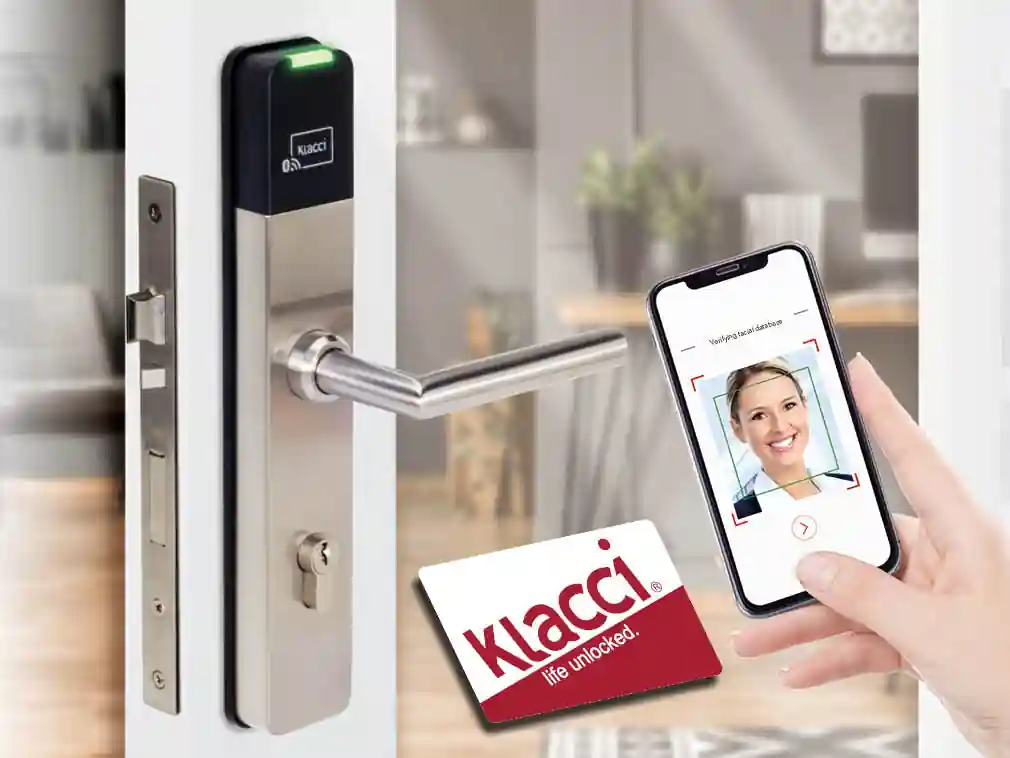
The biometric authentication is directly linked to your smartphone’s database. You can enable this function in the settings menu.
If you are the lock’s administrator, you can enable or disable your facial recognition function for access in the settings menu.

If you want to disable biometric authentication and use passcode input instead, you can disable such function in the settings menu.

When the App cannot be opened normally or close unexpectedly, follow the steps below for troubleshooting:
- Restart your device.
- Re-login to your account in the App.
- Check if the Smartlink App is the latest version. If not, please update the Smartlink App from the App store.
- Remove the Smartlink App. Download and re-install it from the App Store.
If you are using the Klacci iF+ series, synchronize the lock time
- Each time after you replace the batteries.
- When a card fails to unlock the door within the authorized time.
Synchronizing Lock Time
- Use the Smartlink App to perform an unlock.
- Go to the bottom menu bar of the App and tap “Manage Locks” > Select Lock > Select “Sync Lock Time.”
When you are unlocking with the flashing “Offline” on the screen, it means the app is in the offline unlocking mode. This is to ensure you can still successfully unlock the door when there is no or unstable internet connection.
For security reasons, the offline unlocking mode has the following restrictions:
- Limited Number of Unlocks: Each door lock is limited to a maximum of 3 times unlock in the offline mode. This is to ensure the security of the accessing door.
- Remember to Reconnect: Open the app again when you restore the internet connection. The system will automatically update your authorization and reset the number of offline unlocks.